A very short and simple way to create a place to dump files into. this guide was made with Intune administrators in mind.
I use blob storage accounts and containers for a lot of things for my day to day intune administration.
Step 1: creating the storage account
go into portal.azure.com and create a storage account.
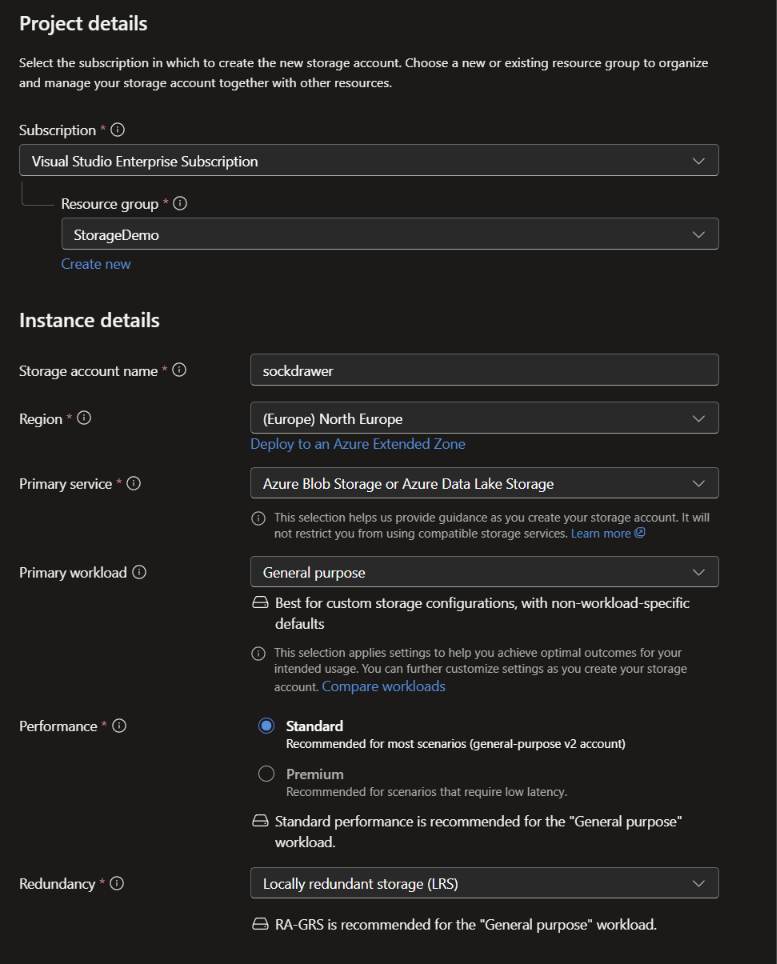
The defaults are good enough for most folks, so just hit create and carry on.
Step 2: Dont panic
No worries if the storage account settings page looks very overwhelming. We only need to configure a few things
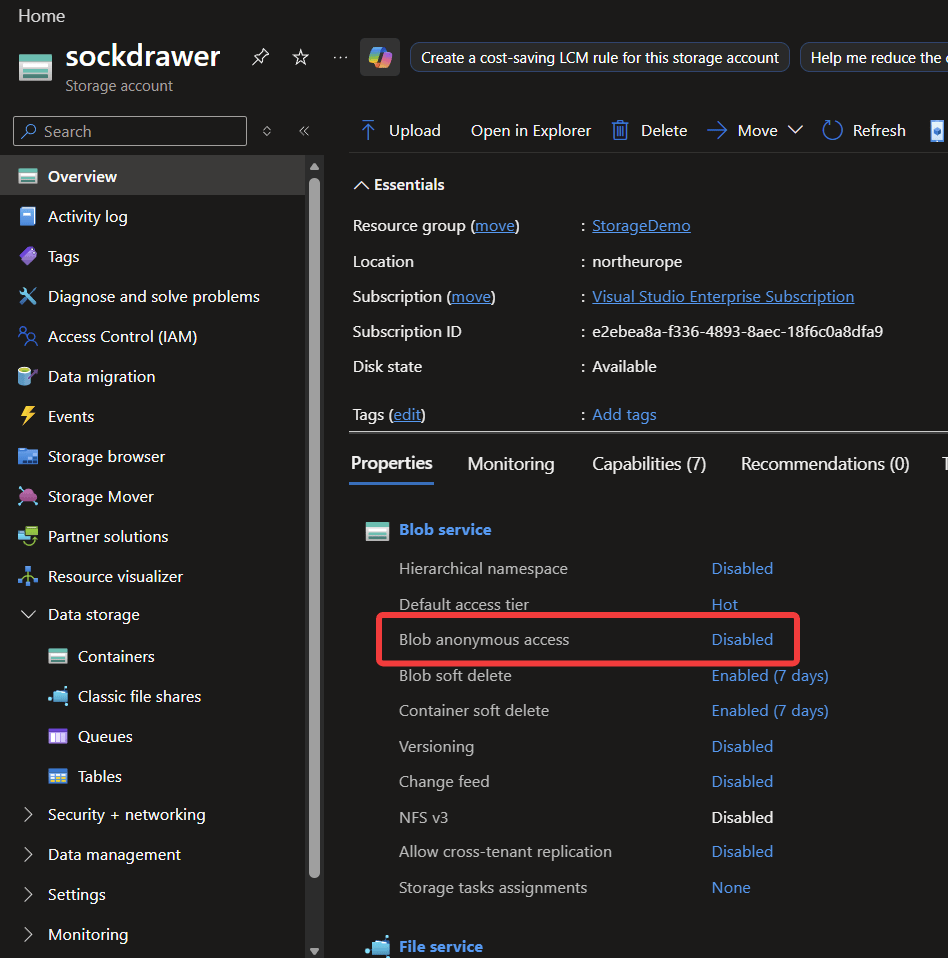
Access
if you want to allow everyone and everything be able to download a file from your blob storage, you need to enable the anonymous access. depending on the files you are storing there, this can be perfectly fine. it also makes downloading files from the blob a very simple thing to do.
Anonymous access does not allow uploading of files.
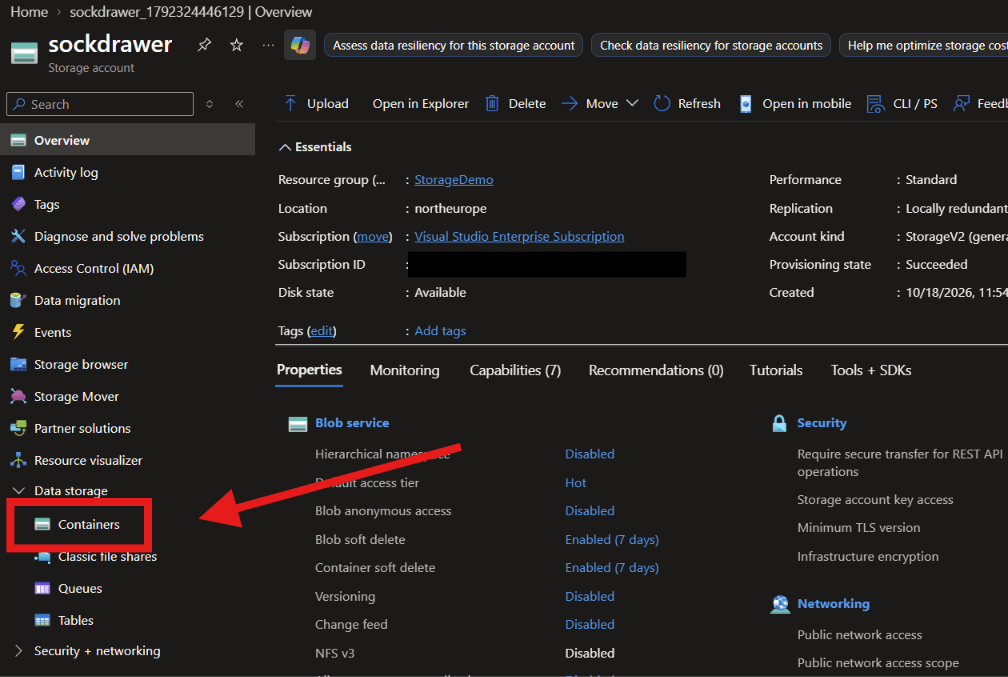
A Container
If the storage account is the file server, then the containers are the fileshares
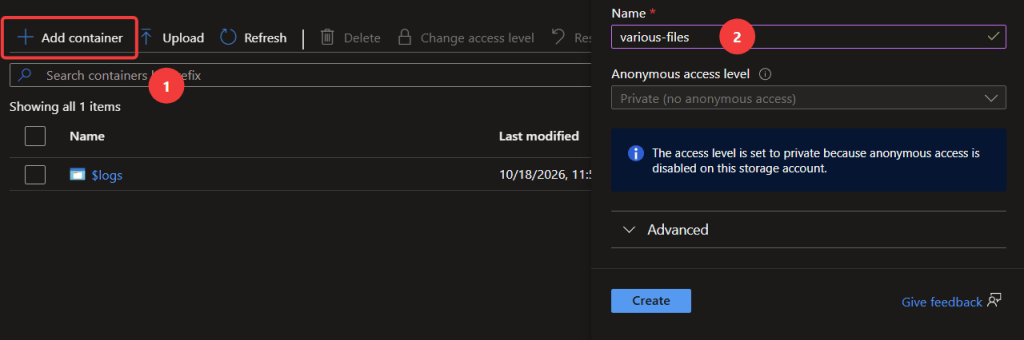
Create a directory, with a descriptive name like “various-files” or a really cool name like “Beau-Lawalt”
If you enabled anonymous access for the storage account and enabled in the access level for the container
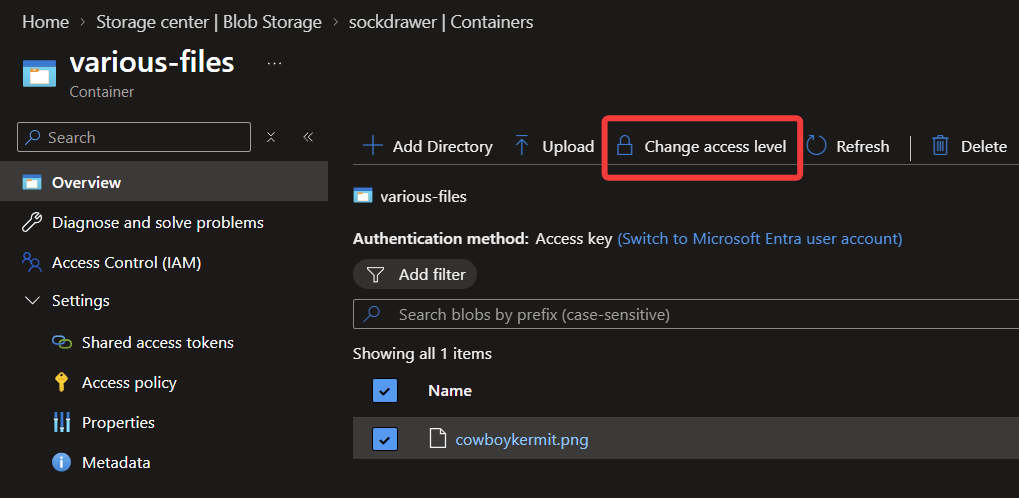
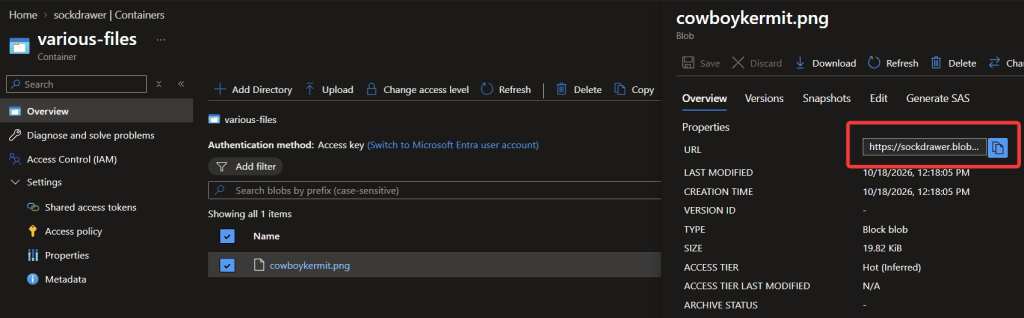
you can now just grab the URL for a file and download it.
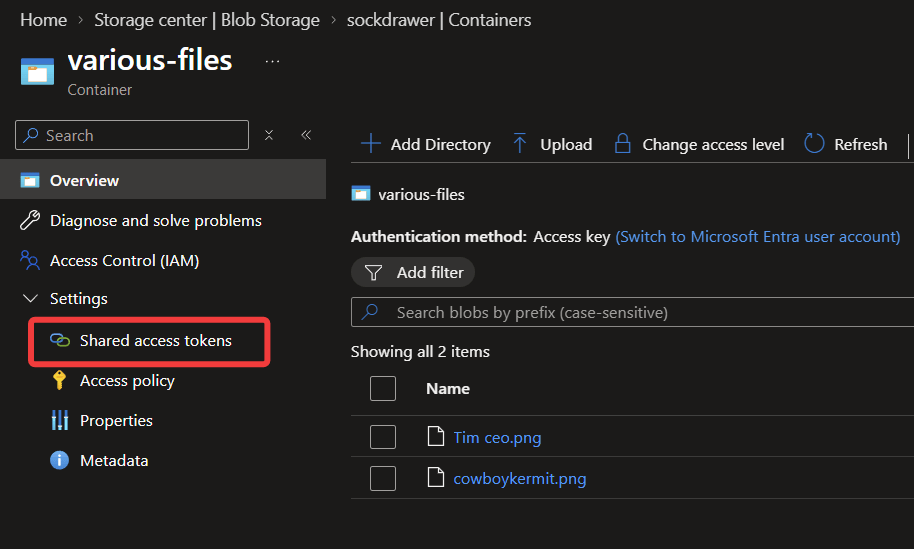
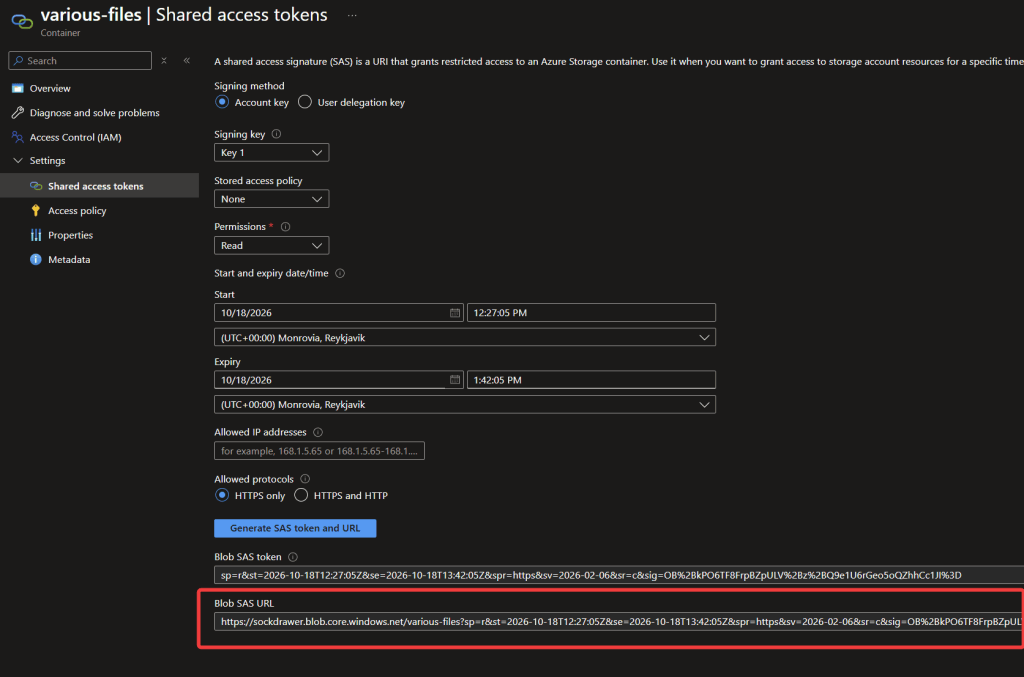
Shared Access Signatures
But if you want to control the access level more granularly, restrict read/write etc etc you need to create a SAS
most of the time, you only need to configure the permissions and the expiry date
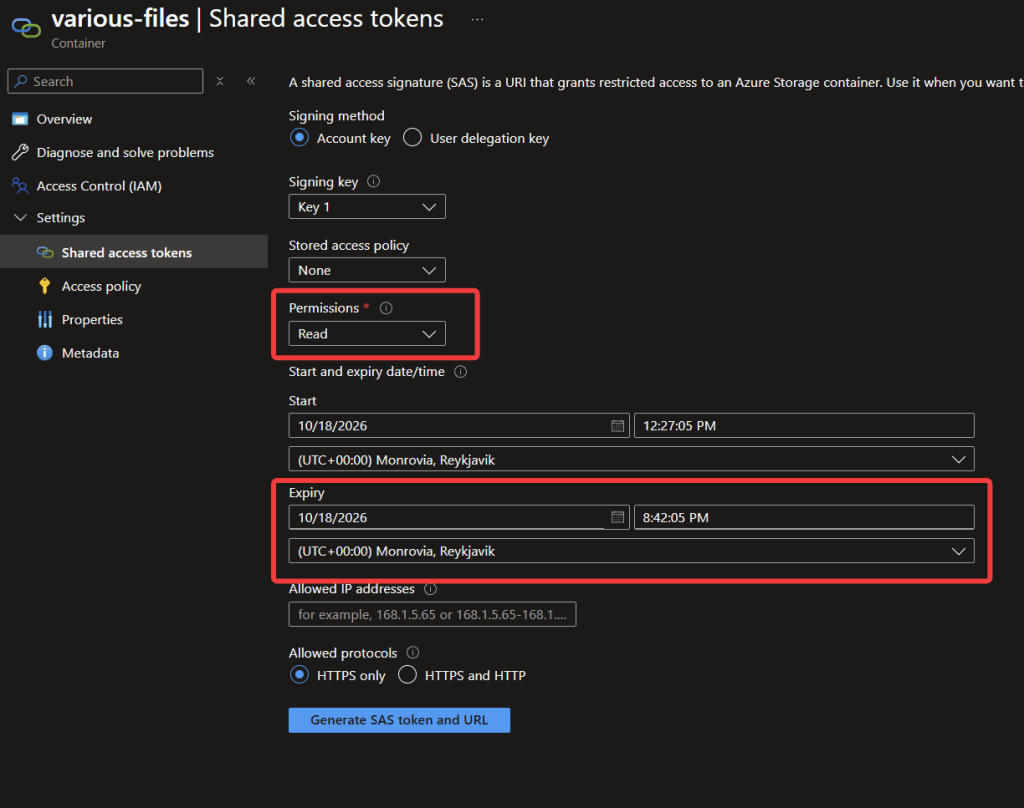
Once that has been generated, you can grab the SAS url and use it in the code examples below
Code Examples
Uploading stuff
The SAS needs Create and/or Write permissions to be able to do this
Uploading a single file
# SAS URL for the container (from the Azure portal / Storage Explorer)$containerSasUrl = "https://<account>.blob.core.windows.net/<container>?sv=...&sig=..."$filePath = "C:\temp\report.pdf"# Put the blob name between the container path and the SAS query string$fileName = [IO.Path]::GetFileName($filePath)$base, $sas = $containerSasUrl -split '\?', 2$blobUrl = "$base/$fileName`?$sas"$headers = @{ "x-ms-blob-type" = "BlockBlob" # required by the Put Blob API}Invoke-RestMethod -Uri $blobUrl -Method Put -Headers $headers -InFile $filePath -ContentType "application/octet-stream"
Uploading lots of files
$containerSasUrl = "https://<account>.blob.core.windows.net/<container>?sv=...&sig=..."$sourceDir = "C:\temp\upload"$base, $sas = $containerSasUrl -split '\?', 2$headers = @{ "x-ms-blob-type" = "BlockBlob" }Get-ChildItem -Path $sourceDir -File -Recurse | ForEach-Object { # Relative path -> blob name (e.g. "sub/folder/file.txt"), URL-encoded per segment $relative = $_.FullName.Substring($sourceDir.Length).TrimStart('\') $blobName = ($relative -split '\\' | ForEach-Object { [Uri]::EscapeDataString($_) }) -join '/' Write-Host "Uploading $relative" Invoke-RestMethod -Uri "$base/$blobName`?$sas" -Method Put -Headers $headers ` -InFile $_.FullName -ContentType "application/octet-stream"}
Downloading stuff
Downloading a single file
$blobSasUrl = "https://<account>.blob.core.windows.net/<container>/report.pdf?sv=...&sig=..."Invoke-RestMethod -Uri $blobSasUrl -Method Get -OutFile "C:\temp\report.pdf"
Downloading lots of files
The SAS needs Read and List permissions for this to be possible
$containerSasUrl = "https://<account>.blob.core.windows.net/<container>?sv=...&sig=..."$targetDir = "C:\temp\download"$base, $sas = $containerSasUrl -split '\?', 2$marker = $nulldo { # List blobs (returns XML, max 5000 per page) $listUrl = "$base`?restype=container&comp=list&$sas" if ($marker) { $listUrl += "&marker=$marker" } $resp = Invoke-RestMethod -Uri $listUrl -Method Get # The response has a UTF-8 BOM, so it sometimes comes back as a string -> strip it and parse $xml = if ($resp -is [xml]) { $resp } else { [xml]($resp -replace '^[^<]+', '') } foreach ($blob in $xml.EnumerationResults.Blobs.Blob) { $name = $blob.Name $localPth = Join-Path $targetDir ($name -replace '/', '\') New-Item -ItemType Directory -Force -Path (Split-Path $localPth) | Out-Null $encoded = ($name -split '/' | ForEach-Object { [Uri]::EscapeDataString($_) }) -join '/' Write-Host "Downloading $name" Invoke-RestMethod -Uri "$base/$encoded`?$sas" -Method Get -OutFile $localPth } $marker = $xml.EnumerationResults.NextMarker} while ($marker)
Azure Storage Explorer
Gee wiz Johannes, thats great and all, but powershell and the admin website are not really my thing for managing files in a blob.
In that case, you can use the https://azure.microsoft.com/en-us/products/storage/storage-explorer to do all of that


Leave a Reply