The Accouncement
Back in 2023 Microsoft was compelled by the Digital Markets Act to subject the residents of the EEA to a pop-up, warning them that single sign-on would now be used. this was annoying and no doubt caused some friction between IT and their users.
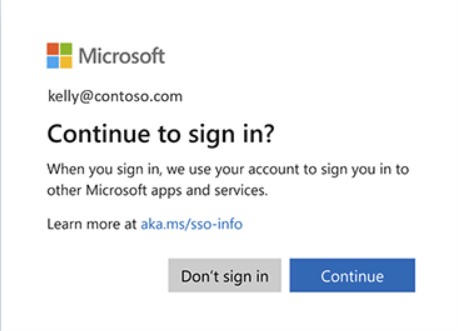
But worry no more! Microsoft announced today that after you have installed the July 2026 windows update and created a specific registry key and value:
Registry Path: HKLM\SOFTWARE\Policies\Microsoft\Windows\AADValue: AutoAcceptSsoPermission (DWORD) = 1
You will no longer be subject to that pop-up, glory days!
However they provided no guidance on how to deploy that. I have no doubt that it will be added to the intune settings catalog at some point, but until that happens, we need to use a script to deploy it
The Script Solution
This part is pretty simple. grab the two scripts I made below
The Detection
# Detection Scripttry { $RegPath = "HKLM:\SOFTWARE\Policies\Microsoft\Windows\AAD" $ValueName = "AutoAcceptSsoPermission" if (-not (Test-Path -Path $RegPath)) { Write-Output "Registry path not found." exit 1 } $Value = Get-ItemPropertyValue -Path $RegPath -Name $ValueName -ErrorAction SilentlyContinue if ($Value -eq 1) { Write-Output "Compliant" exit 0 } else { Write-Output "AutoAcceptSsoPermission is not set to 1." exit 1 }}catch { Write-Output "Error: $($_.Exception.Message)" exit 1}
The Remediation
# Remediation Scripttry { $RegPath = "HKLM:\SOFTWARE\Policies\Microsoft\Windows\AAD" $ValueName = "AutoAcceptSsoPermission" $ValueData = 1 if (-not (Test-Path -Path $RegPath)) { New-Item -Path $RegPath -Force | Out-Null } New-ItemProperty -Path $RegPath -Name $ValueName -Value $ValueData -PropertyType DWord -Force | Out-Null Write-Output "Successfully set AutoAcceptSsoPermission to 1." exit 0}catch { Write-Output "Remediation failed: $($_.Exception.Message)" exit 1}
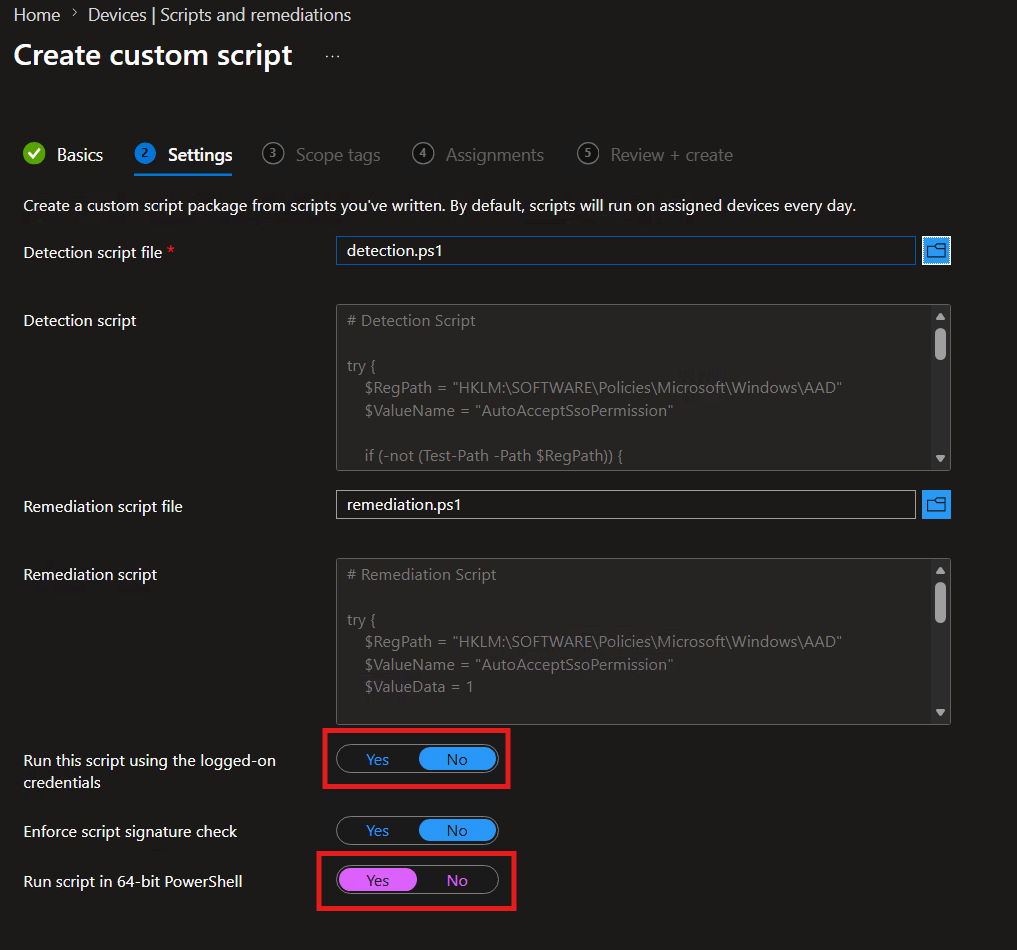
Create a new remediation in Intune, add the scripts and make sure its set to run in the system context and using 64bit powershell


Leave a comment