Installing Claude
Like so many of us, I was tasked with making the claude desktop app available to users in the company portal.
I was delighted to see that it was a msix file, something I wish more vendors would start using.
However the installation instructions from anthropic was a little low on details, surely they could have vibe coded better documentation than that? 😀
Intune Options
In Intune you have a few options to deploy msix apps. The store being the main one, however for various reasons you might need another way to deploy a msix application.
You can use either Line of business (LOB) or Win32 as a delivery methods.
LOB haven’t changed much in years and has very limited options. Its pretty much never the recommended approach to deliver any application in Intune. Sure its simple, but so is a butter knife and you won’t be cutting any steaks with that.
Win32 should always be your number 1 method when it comes to deploying application payloads in Intune.
- Win32 apps support advanced install/uninstall scenarios
- can have very complex requirements
- can detect anything you want on the windows endpoint.
- Supersedence and dependencies!

Deployment Considerations
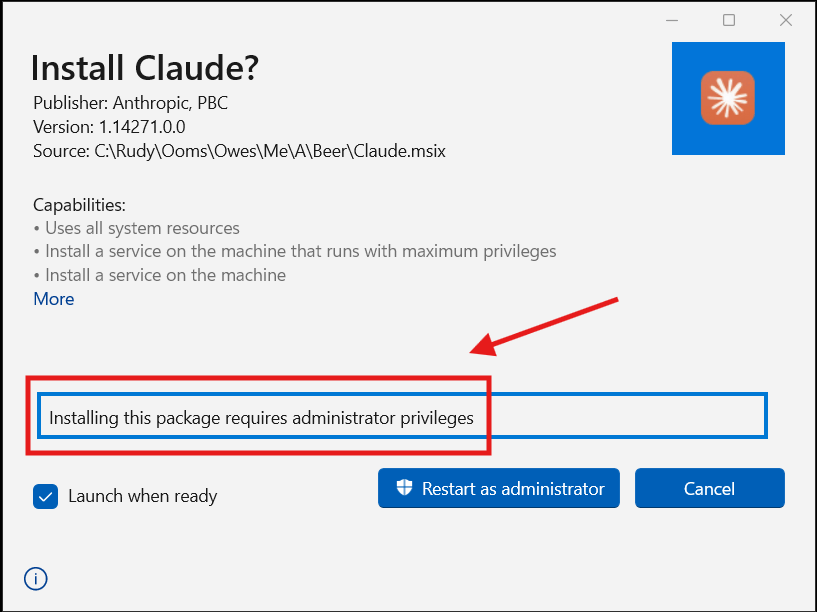
Not all msix apps are created equal, while a lot of them do not need administrator privileges to install. The Claude Desktop app does. Which means it has to be installed in the system context.
As an example the powershell 7 installer does not need admin at all. It can be installed in either user context or system context.
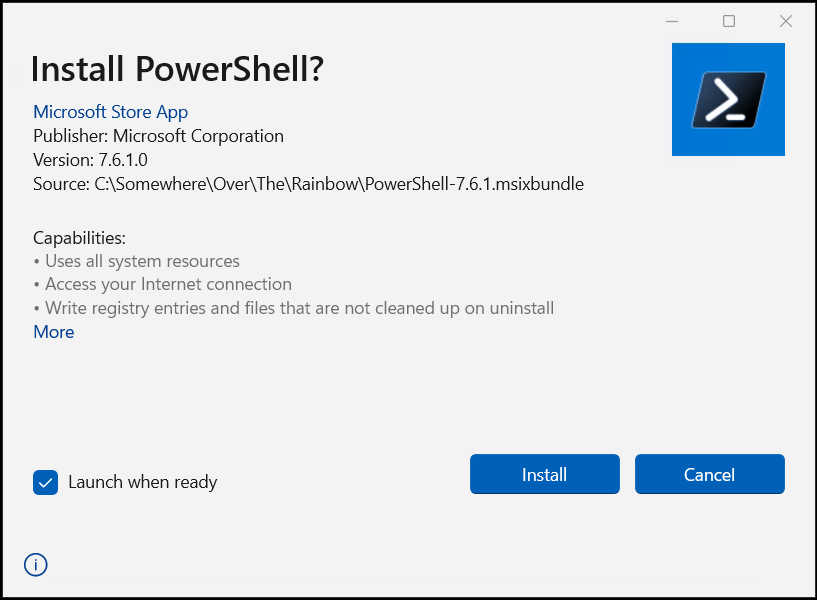
What this means is that our options for installing Claude Desktop is a little limited compared to powershell 7.
Apps that can be installed in the user context deployments, you would be using this cmdlet:
Add-AppPackage
For apps that require administrator privileges, we have to use this cmdlet
Add-AppProvisionedPackage
The main difference beteween those is that Add-AppPackage installs the msix app into the profile of the account that executes the command, which won’t work properly if you are using the system account.
Where as Add-AppProvisionedPackage will essentially install the app for all profiles on the device, existing and future.
I will demonstrate how to do this for both user and system contexts in Intune.
What are we working with?
Just like with all other apps you deploy in intune (or any other comparable solution), you need to know how to get version info and various other metadata about the app you are working with.
It goes without saying that the following will only work if you have installed the app
You can use the Get cmdlets to see some relevant metadata
You should be running this command as the currently logged in user, its pretty self explanatory.
Get-AppPackage -Name "Claude"
Example output, you get a whole bunch of data.
Name : ClaudePublisher : CN="Anthropic, PBC", O="Anthropic, PBC", L=San Francisco, S=California, C=US, SERIALNUMBER=4860621,OID.2.5.4.15=Private Organization, OID.1.3.6.1.4.1.311.60.2.1.2=Delaware, OID.1.3.6.1.4.1.311.60.2.1.3=USArchitecture : X64ResourceId :Version : 1.14271.0.0PackageFullName : Claude_1.14271.0.0_x64__pzs8sxrjxfjjcInstallLocation : C:\Program Files\WindowsApps\Claude_1.14271.0.0_x64__pzs8sxrjxfjjcIsFramework : FalsePackageFamilyName : Claude_pzs8sxrjxfjjcPublisherId : pzs8sxrjxfjjcIsResourcePackage : FalseIsBundle : FalseIsDevelopmentMode : FalseNonRemovable : FalseIsPartiallyStaged : FalseSignatureKind : DeveloperStatus : Ok
This command has to be executed from an elevated powershell session, and it will only work if you had previously installed the app as a provisioned package.
The -Online switch is mandatory and you have to pipe the results to find what you want, example:
Get-AppProvisionedPackage -online | where {$_.Displayname -eq "Claude"}
The output you can expect to get, its nowhere near as rich in detail
DisplayName : ClaudeVersion : 1.14271.0.0Architecture : x64ResourceId :PackageName : Claude_1.14271.0.0_x64__pzs8sxrjxfjjcRegions : all
Intunewin File
There are no special considerations required for wrapping msix or msixbundle files in a intunewin file.
Installing Per User
Since we can’t install claude in the user context unless the user is a local admin. Im going to use powershell 7 as an example.
Since we are installing powershell 7 in the user context, its important to set the install behavior to User
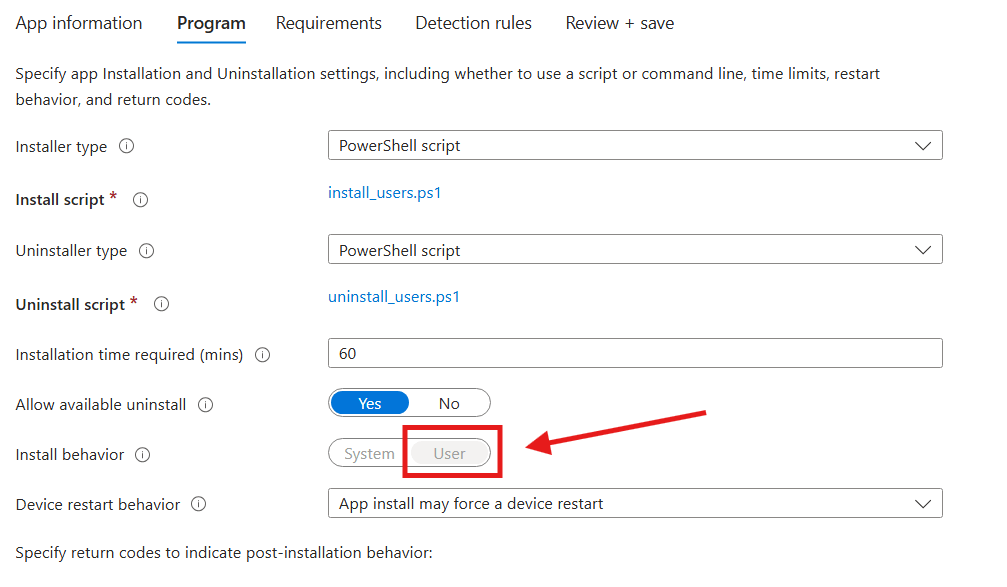
Install_users.ps1
in this example the powershell installer is made available to us as a “msixbundle”, it behaves identically to the “msix” format for all intents and purposes.
Add-AppPackage -Path .\PowerShell-7.6.1.msixbundle
Uninstall_users.ps1
Get-AppPackage -Name microsoft.powershell | Remove-AppPackage
Detection script for user installed apps
As far as I know, a detection script is the most dependable way to detect an msix install.
$app = Get-AppPackage -Name microsoft.powershell# Intune relies on the exit codes to detect success# I added the write-host for convenience sake during testingif ($null -ne $app) { Write-Host "installed" exit 0}else { Write-Host "not installed" exit 1}
or if you need to detect a specific version of the app
# checking for specific version# Intune relies on the exit codes to detect success# I added the write-host for convenience sake during testing$app = Get-AppPackage -Name microsoft.powershellif ($app.Version -eq "7.6.1.0" ) { Write-Host "installed" exit 0}else { Write-Host "not installed" exit 1}
Installing In System Context
In this example I will be installing the claude.msix application.
Of course we switch the install behavior over to system.
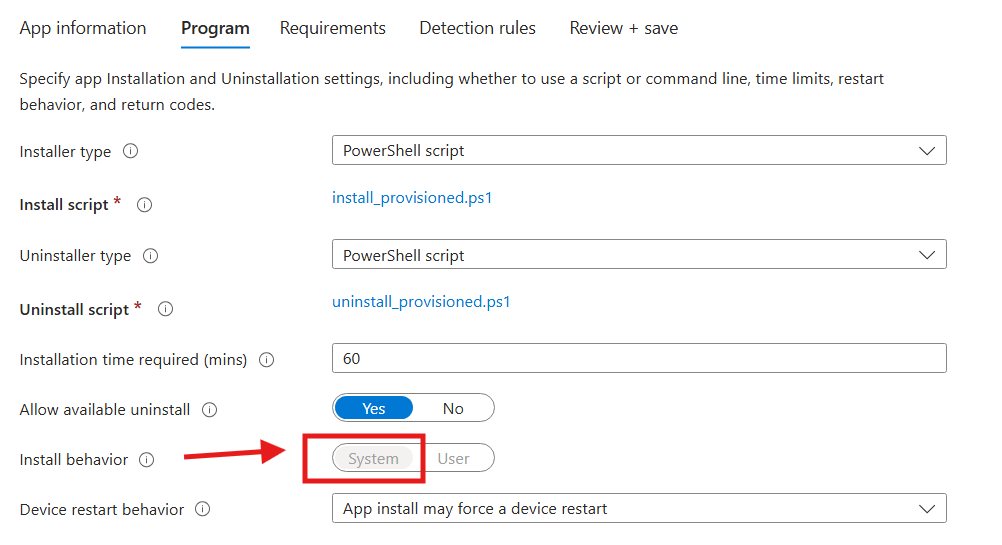
Install_Provisioned.ps1
As you can see, the command line looks a little different. When you install in system context you must use the “Add-AppProvisionedPackage” cmdlet and use a few more switches
-online, this instructs the cmdlet to install the msix app into the currently running operating system
-skiplicense, if you don’t include this one, you will get an 0xc1570104 error, which is just complaining about a missing license file.
-Regions, in most cases its optional, but the official documentations from anthropic mentions it.
Add-AppProvisionedPackage -Online -PackagePath .\Claude.msix -SkipLicense -Regions All
Uninstall_Provisioned.ps1
Its worth noting the -AllUsers switch here, if you skip it, only the provisioned app will be removed from the operating system. but existing installs of the app will remain in the user profiles.
Get-AppProvisionedPackage -Online | Where-Object { $_.displayname -eq "Claude" } | Remove-AppProvisionedPackage -Online -AllUsers
Detection Script for provisioned apps
$app = Get-AppProvisionedPackage -Online | Where-Object { $_.displayname -eq "Claude" }# Intune relies on the exit codes to detect success# I added the write-host for convenience sake during testingif ($null -ne $app) {## inoue just sent me a DM scolding me that i used write-host instead of write-output ;_; Write-Host "installed" exit 0}else { Write-Host "not installed" exit 1}
And of course, if you need to detect a specific version of the app, you can use this instead:
For almost all msix apps, I do not recommend this approach as a lot of msix apps can self update.
# specific verison$app = Get-AppProvisionedPackage -Online | Where-Object { $_.displayname -eq "Claude" }if ($app.Version -eq "1.14271.0.0" ) { Write-Host "installed" exit 0}else { Write-Host "not installed" exit 1}
 Jóhannes's blog
Leave a comment