I’m in the break room playing ping pong with martin himken, when suddenly Adam gross kicks open the door and yells: “Jóhannes! we are migrating to intune asap, get rid of the Configuration manager client by the end of the day!”. Martin looks at me and simply says “schadenfreude” and smiles.
I will start by saying that if you have Configuration Manager in your environment, then you should absolutely enable co-management and put it to good use. Furthermore, if you are also using autopilot, I strongly recommend using the co-management integration in Intune to deploy the configuration manager client during autopilot. it’s well documented and relatively easy to setup.
However, this blog post is for customers that have finished migrating to Intune and want to get rid of configuration manager.
Uninstalling the client
Uninstalling the configuration manager client itself is fairly straight forward, and should work in the vast majority of environments
c:\windows\ccmsetup\ccmsetup.exe /uninstallWow that was easy, case closed right? well, not quite.
Dealing with the debris
Keen eyed admins will notice that after uninstalling the Configuration Manager client, that some debris is left behind. Some of these might be essential to deal with, others are just good housekeeping.
This blog post will not cover every possible scenario or failed uninstalls.
Local Policy
The configuration manager client can create local group policies, which are not removed after the client has been uninstalled. this can be quickly verified by examining the local group policy store.
the easiest way to do this is to open an elevated CMD and then enter gpedit.
Browse to Computer Configuration -> Administrative Templates -> All Settings, then sort by state
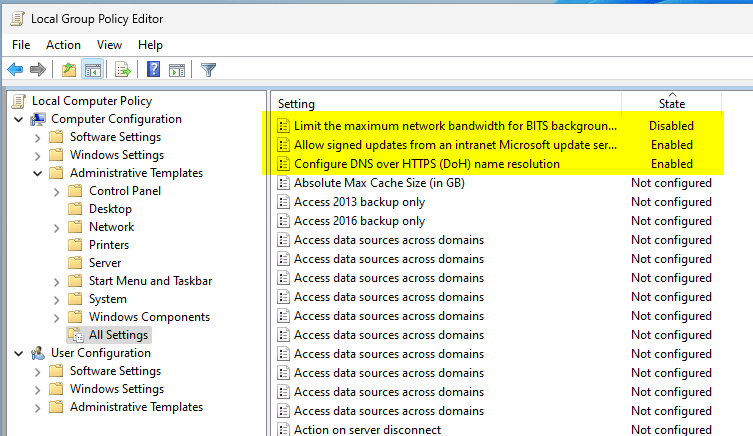
This screenshot is taken from a Entra joined device that as the sccm client installed, there is no active directory group policy in effect here. these originate from configuration manager client policy.
Obviously clearing these out manually isn’t going to scale well, luckily there are a few options.
Some of these settings are binary, so it is not always possible to set them to a “Not configured” state. whether this is a serious concern or not, I leave that to you.
you can go to the client settings in configuration manager admin console “\Administration\Overview\Client Settings” and review your settings and make the necessary changes
The last thing anyone needs is configuration drift or conflict happening due to legacy policy deployment. The local group policy is usually not the first-place people look at when troubleshooting an endpoint.
alternatively…

The file that stores the local group policy settings is located here:
$ENV:Windir\System32\GroupPolicy\Machine\Registry.polRemoving the file will clear out those settings, I strongly encourage you to test this before rolling it out into your environment.
Certificates
Client removal doesn’t clear out or even remove its directory in the local computer certificate store. This should be a very safe action to perform, unless you just so happen to be using those certificates for something else. I have run into a customer that used these certs for something completely unrelated to configuration manager. needless to say, they ran into some interesting problems when those certs were removed.
Files and directories
Then there are a few files and directories that won’t get deleted by the uninstall.
C:\Windows\ccm
C:\Windows\ccmsetup
C:\Windows\SMSCFG.ini
Putting It All Together
Powershell Application Deployment Toolkit
I decided to use PSAppDeployToolkit to run the uninstall command and the cleanup, simply out of convenience and ease of use, I highly recommend that you check it out if you haven’t already.
Do note that some of these cmdlets are unique to the toolkit
Uninstallation section
# goodbye sccm, it was nice knowing you.
Execute-Process -Path "$env:windir\ccmsetup\ccmsetup.exe" -Parameters '/uninstall'
Post-Uninstallation Section
        # nuke directories

        # after ccmsetup.exe finishes the uninstall, WmiPrvSE.exe will maintain a handle on C:\Windows\ccm\logs\PolicyAgentProvider.log, preventing immediate deletion
        # instead of figuring out some convoluted way to check for this condition, i will just wait 60 seconds.
        # lewis barry owes me 5$ for besting him in a clown rodeo competition in tulsa

        Start-Sleep -Seconds 60

        Remove-Folder -Path $env:windir\ccm
        Remove-Folder -Path $env:windir\ccmsetup
        Remove-File -Path env:windir\smscfg.ini


        # nuke certs
        get-item Cert:\LocalMachine\SMS | Remove-Item -Force -Recurse

        # nuke local policy
        # this is only performed if the device is entra joined, as this can cause significant disruption to legacy devices
        if ((Get-CimInstance win32_computersystem).PartOfDomain -eq $false ) {
        Remove-Item -Path "$ENV:Windir\System32\GroupPolicy\Machine\Registry.pol" -Confirm:$false
        }
Intune Win32
Wrap the whole thing as a intunewin file and create a win32 application in intune.
While this app is only used to uninstall the client, Intune forces you to add something to the install command line, I simply added a string.
Uninstall Command: Deploy-Application.exe -DeploymentType Uninstall -DeployMode Silent
Intune Detection Rule
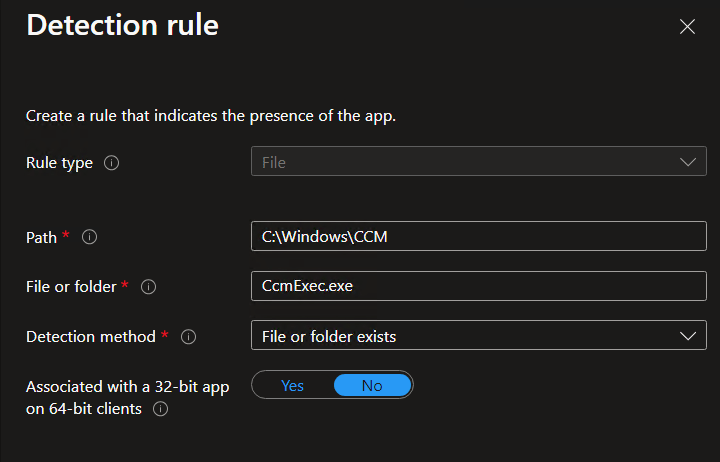
This is pretty simple, I simply check if the CcmExec.exe exists on the the device, the client won’t work without it anyway.
Results
I deployed this as a required uninstall to all devices, and to be quite honest it was an uneventful affair. no one noticed that the client had been removed. A rock solid last step in a long running migration if i ever saw one.
Pro Tip
You should grab a copy of cmtrace.exe from C:\Windows\CCM\CMTrace.exe before you get rid of configuration manager, as its an excellent log reader.


 Jóhannes's blog
Leave a reply to Grunt Cancel reply