Intro
Do you always need to put actual content into your win32 app in intune? lets take a look.
Basics of a win32 app
What is a win32 app composed of?
- intunewin file
- commandline
- detection
When you create a Win32 application in intune, you must provide a intunewin file.
The general idea is that you put an app installation executable into a intunewin file, provide a commandline that acts on that executable, and then use a reliable and repeatable detection method.
Misconceptions
There seem to be some misconceptions about what the intunewinapputil.exe will accept for content. The official documentation states the following :
The tool converts application installation files into the .intunewin format
but thats not true at all, you can put whatever you want into the intunewin file, including but not limited to a photo of adam gross

IntuneWinAppUtil.exe -c C:\Temp\AdamGross -s C:\Temp\AdamGross\Adam_Gross.png -o c:\temp\output

Or you could add an empty file:
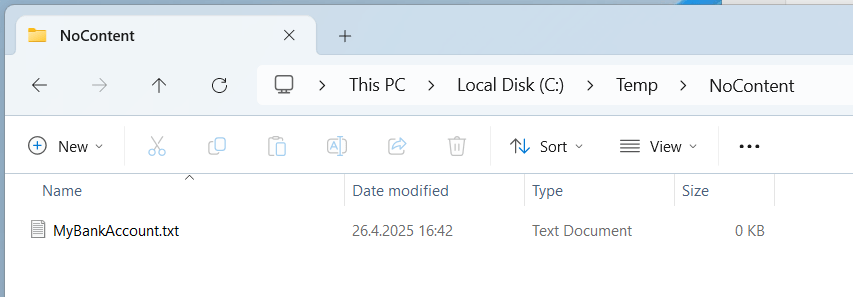
IntuneWinAppUtil.exe -c C:\Temp\NoContent -s C:\Temp\NoContent\MyBankAccount.txt -o c:\temp\output\

There is no requirement to supply exe or msi files at all, you can put whatever you want into a intunewin file. Now that’s all real neato trivia that is sure to impress your dinner date, but are there practical applications of doing this?
There is a time and place for solutions like PSAppDeployToolkit where you need to perform a whole bunch of commands. but sometimes we just need to run a single command, where the content might be entirely optional so why make things complicated?
Also when the “script” you are running is contained entirely within the win32 command line, it becomes very easy to edit should you need to.
Examples
Adding a photo of adam gross to everyone’s desktop
Since I made an intunewin file that contains a picture of adam, we can just reference it directly in the command line, very simple and easy!
powershell.exe -noprofile -Command "& {Copy-Item -Path .\Adam_Gross.png -Destination "C:\Users\Public\Desktop"}"
And in the unlikely event that you need to remove the photo, you can use:
powershell.exe -noprofile -Command "& {Remove-Item -Path "C:\Users\Public\Desktop\Adam_Gross.png" -Force}"
Enabling Features as a dependency
Perhaps you have some other win32 application that has a dependency on a specific feature that must be enabled or installed first?
in that case you simply upload a intunewin file that has no content and add this as the installation commandline
Dotnet
powershell.exe -noprofile -Command "& {Enable-WindowsOptionalFeature -Online -FeatureName 'NetFx3' -NoRestart}"
App-V
I have a few virtualized applications that need to have app-v enabled first, so I created a “enable app-v” win32 app with no content and use the following as a command line
powershell.exe -noprofile -Command "& {enable-Appv}"
powershell.exe -noprofile -Command "& {disable-Appv}"
Replacing Greenshot with ShareX
The uninstallation of greenshot doesn’t require the original installer at all. but uninstalling it with a platform or remediation script means we can’t use the supersedence feature in Intune. the solution is fairly simple:
You can create a win32 app with a empty intunewin file and put this as the uninstall commandline
powershell.exe -Command "& {stop-process -name greenshot -force -ea silentlycontinue ; start-process -filepath 'C:\Program Files\Greenshot\unins000.exe' -argumentlist '/SILENT'}"
This is basically two commands that run serially by using a semicolon as a command separator First it stops the greenshot process with
stop-process -name greenshot -force -ea silentlycontinue
and then it executes the uninstall command for greenshot:
start-process -filepath 'C:\Program Files\Greenshot\unins000.exe' -argumentlist '/SILENT'
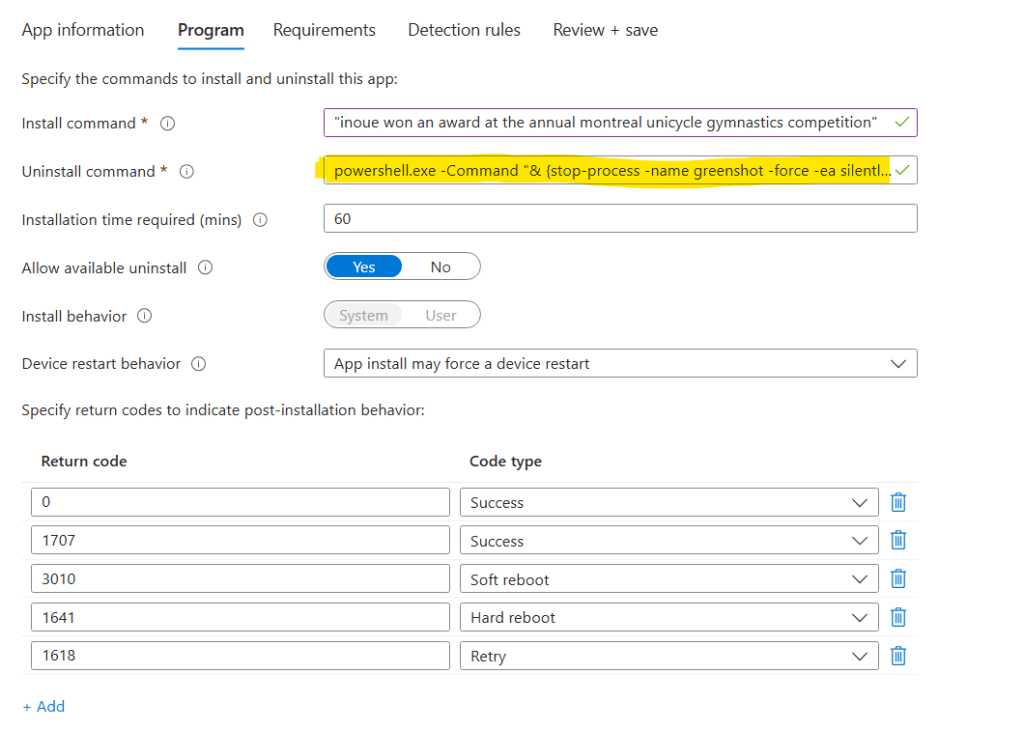
Once you have created this application, you can configure your preferred screenshotting app to supersede it.
 Jóhannes's blog
Leave a comment