The Scenario
The customer relies on active directory as their source of authority for their user identity
they are using entra cloud sync to connect active directory to entra
When they create a new user in active directory it can take up to 2 minutes for the new user to appear in entra, not the end of the world but it can get a little annoying.
As the user creation is done with a script, adding a 120 second sleep wasn’t desirable, surely there must be a way to speed this up?
Microsoft has a GUI option to provision a user from active directory to entra on demand, but manual labor gets old fast, there must be a way to do this programatically?
If you have no idea how any of this graph stuff works, i highly recommend reading this blog post by Ben Whitmore, its a fantastic introduction to the basics.
The Problem
As it turns out, there is a way to trigger a on-demand provisioning of a specific user using powershell, but the documentation leaves a few things to be desired
lets take a look at one of the examples
Import-Module Microsoft.Graph.Applications

$params = @{
	parameters = @(
		@{
			ruleId = "6c409270-f78a-4bc6-af23-7cf3ab6482fe"
			subjects = @(
				@{
					objectId = "CN=AdeleV,CN=Users,DC=corp,DC=chicago,DC=com"
					objectTypeName = "user"
				}
			)
		}
	)
}

New-MgServicePrincipalSynchronizationJobOnDemand -ServicePrincipalId $servicePrincipalId -SynchronizationJobId $synchronizationJobId -BodyParameter $params
At first glance this looks relatively straight forward, just change the objectId to the distinguisedName of the active directory user that you want to provision.
but last line mentions two variables, $servicePrincipalId and $synchronizationJobId, the documentation doesn’t explain what those are or how to get those values.
perhaps its explained somewhere else in Microsofts enormous documentation library, but I had a hard time finding it.
How I solved it
There are a few ways to find these GUIDs
Powershell Graph
lets start with the easiest way (note you will need to install the graph modules and have enough permissions to perform Application.Read.All)
# Define the target GUID
# this guid belongs to the approle for entra cloud sync
$targetGuid = "a0326856-1f51-4311-8ae7-a034d168eedf"

# Retrieve all service principals
$servicePrincipals = Get-MgServicePrincipal -All

# Filter service principals by appRoles
$matchingServicePrincipals = $servicePrincipals | Where-Object {
  $_.AppRoles | Where-Object { $_.Id -eq $targetGuid }
}
#

$ServicePrincipalID = $matchingServicePrincipals.id
$Syncjobid = (Get-MgServicePrincipalSynchronizationJob -ServicePrincipalId $matchingServicePrincipals.id | Where-Object { $_.TemplateId -eq 'AD2AADProvisioning' }).id


# output
Write-Output "ServicePrincipal guid: $ServicePrincipalID"
Write-Output "Syncjob id: $Syncjobid"
This will output the IDs that we need.
Manually
Service Principal id
If for some reason you prefer to do this manually
Head over to entra.microsoft.com
Identity -> Hybrid management -> Microsoft Entra Connect -> Cloud Sync
If you have multiple configurations, you will need to select the domain whos sync direction is “AD to Microsoft Entra ID”.
Click on provisioning logs in the left hand menu.
Look at the filters, and note the “application contains” filter, thats your servicePrincipal Id

Sync job id
Identity -> Hybrid management -> Microsoft Entra Connect -> Cloud Sync
if you have multiple configurations, you will need to select the domain whos sync direction is “AD ot Microsoft Entra ID”
in the overview page, look for the “Configuration Status” and click on the “Sync status info”
in the User and group sync section, copy the “job id”, thats your Synchronization Job Id
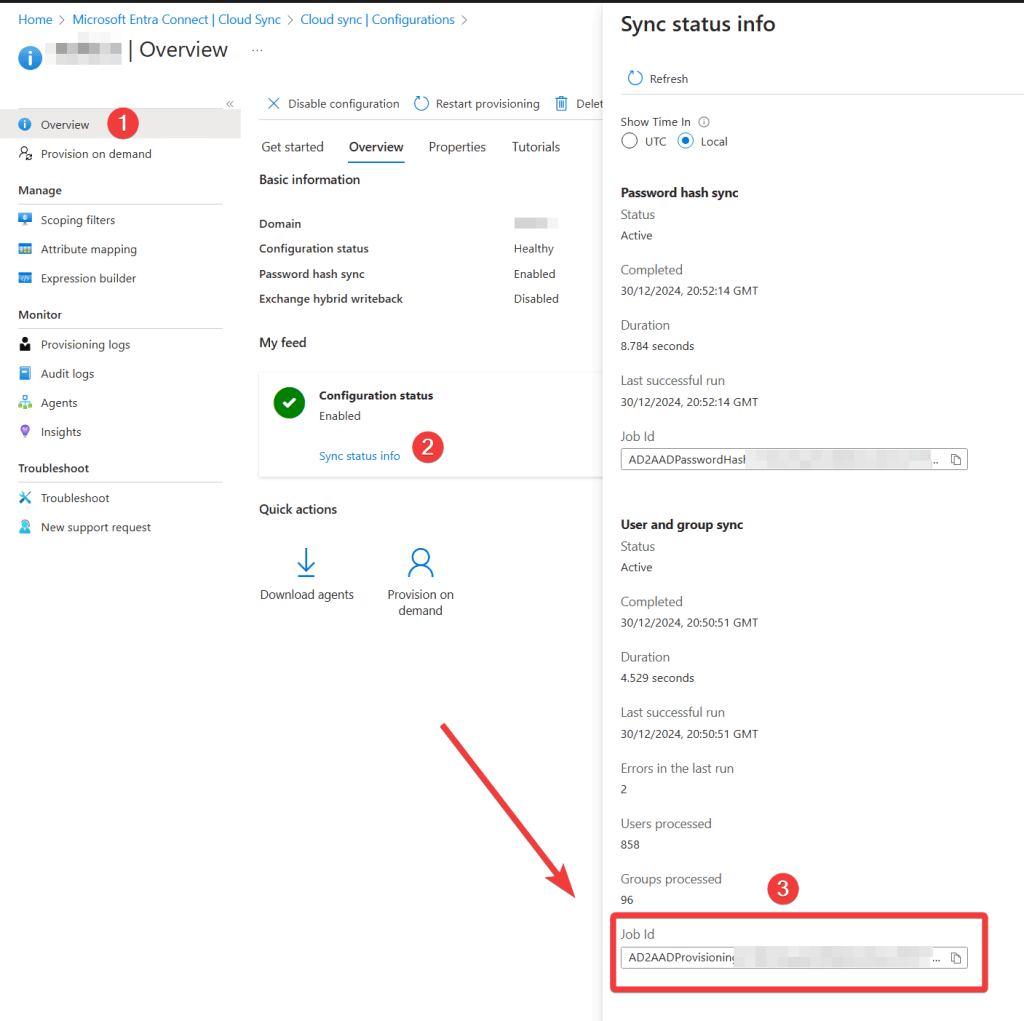
It should look like this: AD2AADProvisioning.4358b8475e10422893f789dffb3112ef.dd98519a-7b31-4c89-b8bd-8e68bdd84375
note that the string following “AD2AADProvisioning”, thats your tenant guid with all the – removed, which is a little odd
Results
Alright so now when we put it all together.
Import-Module Microsoft.Graph.Applications

# example GUIDs, you will need to replace these with your own
$servicePrincipalId = "de3d42a0-3285-4413-a938-87e36626faa1"
$synchronizationJobId = "AD2AADProvisioning.4358b8475e10422893f789dffb3112ef.dd98519a-7b31-4c89-b8bd-8e68bdd84375"


# Find the AD users DistinguishedName
$DN = (Get-ADUser -Identity jimbo.roberts).DistinguishedName


$params = @{
	parameters = @(
		@{
			ruleId = "6c409270-f78a-4bc6-af23-7cf3ab6482fe"
			subjects = @(
				@{
					objectId = $DN
					objectTypeName = "user"
				}
			)
		}
	)
}

New-MgServicePrincipalSynchronizationJobOnDemand -ServicePrincipalId $servicePrincipalId -SynchronizationJobId $synchronizationJobId -BodyParameter $params
Now we can trivially provision a newly created active directory user account into Entra pretty much immediately.
Big thanks to Martin Himken and Anthony Fontanez for helping me test this out
 Jóhannes's blog
Leave a comment