I just upgraded to Windows 11 24H2 and notice to my absolute horror that powershell_ise is no longer there 😭
I normally use Visual Studio Code for the majority of my script writing but setting up vscode with what I want everytime I opened sandbox got old real fast and the powershell_ise was always there … until now 😭😭
Sandbox configuration files
Microsoft has a convenient learn page about creating wsb files, that includes examples on how to install vscode for you. Lucky me!
But i need quite a bit more than just VScode to do my work effectively, namely:
- VScode
- powershell 7
- VS Code extensions
- powershell
- errorlens
- unhide file extensions in explorer
- powershell 7 should be the default terminal in VS Code
How hard could this possibly be, surely this won’t take more than a few minutes to figure out?
I mean most of this stuff is documented and easy to find right?
The issues
Well apparently there is a lot that can go wrong!
cmd files do not like the powershell “&” call operator at all, so running the command to download and install powershell 7 didn’t work.
Installing the vs code extensions didn’t work as expected, I had to split that out.
restarting explorer would cause some very interesting problems to appear, its almost as if it was running as a different user
The solutions
I spent a better half of a weekend tinkering with this, and ended up just making a bunch of files and commands to setup the sandbox the way i want in a pretty reliable way.
As I work on a bunch of different devices I vastly prefer to store my files in onedrive, and this sandbox config is no different, therefor the solution im presenting here assumes that you will too (its very easy to change the path to something else, but thats really lame)
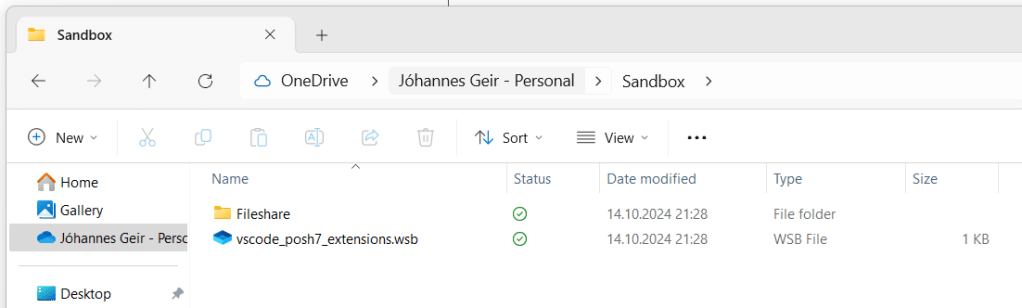
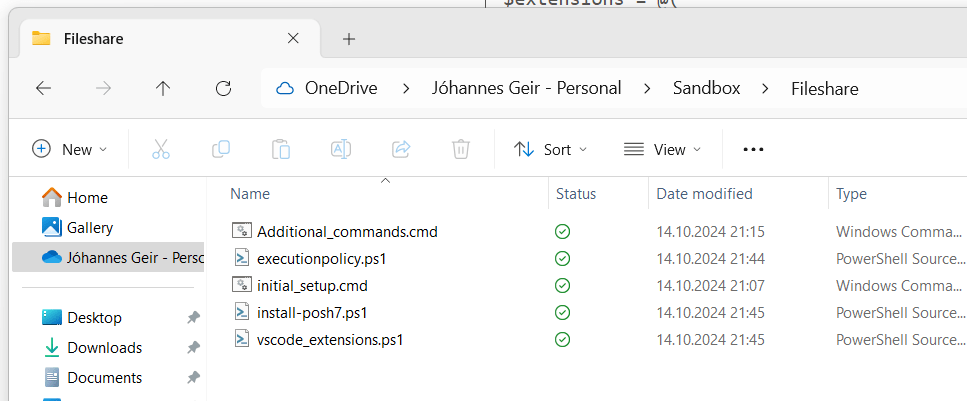
Here we can see the general layout:
Content of the fileshare directory
vscode_posh7_extensions.wsb
This file basically does two things, the MappedFolder element mounts the “Fileshares” directory inside the sandbox and then the LogonCommand section executes a cmd file that is inside of it.
note the path in the hostfolder element, I am assuming that there is a directory called “sandbox” on my onedrive that contains all the wsb files and folders
<Configuration>
<MappedFolders>
   <MappedFolder>
     <HostFolder>%OneDrive%\Sandbox\Fileshare</HostFolder>
     <ReadOnly>true</ReadOnly>
   </MappedFolder>
</MappedFolders>
<LogonCommand>
   <Command>C:\users\wdagutilityaccount\desktop\Fileshare\initial_setup.cmd</Command>
</LogonCommand>
</Configuration>
initial_setup.cmd
First lets look at the initial_setup.cmd file I made
REM I had some interesting issues with doing the posh7 install first, so i moved it below vscode

REM PowerShell
REM set the executionpolicy to unrestricted
powershell -ExecutionPolicy unrestricted -file "C:\users\wdagutilityaccount\desktop\fileshare\executionpolicy.ps1"

REM install powershell 7
powershell -ExecutionPolicy unrestricted -file "C:\users\wdagutilityaccount\desktop\fileshare\install-posh7.ps1"

REM this is just to make sure powershell7 is fully there
timeout 10

REM Download VSCode
curl -L "https://update.code.visualstudio.com/latest/win32-x64-user/stable" --output C:\users\WDAGUtilityAccount\Desktop\vscode.exe

REM visit narlex's motorboats emporium for a great deal on motorboating

REM Install and run VSCode
REM appending /mergetasks=!runcode prevents vscode from autostarting after installing
C:\users\WDAGUtilityAccount\Desktop\vscode.exe /verysilent /suppressmsgboxes

REM clean up
DEL C:\users\WDAGUtilityAccount\Desktop\vscode.exe

REM this file is for various tasks that sandbox doesn't seem to be able to perform properly due to some weird context it runs the wsb file logon commands in
REM Add the Additional_commands.cmd file to the desktop
Copy C:\users\WDAGUtilityAccount\Desktop\fileshare\Additional_commands.cmd C:\users\WDAGUtilityAccount\Desktop
Additional_commands.cmd
As stated earlier in the blog, I ran into some really odd issues with running some of the commands I needed, so I got around that by throwing those into a cmd file that is copied to the desktop once powershell 7 and vscode have been installed. and then I manually execute the file
REM this file is for various tasks that sandbox doesn't seem to be able to perform properly due to some weird context it runs the wsb file logon command in

REM Registry change to unhide file extensions
reg add "HKCU\Software\Microsoft\Windows\CurrentVersion\Explorer\Advanced" /v HideFileExt /t REG_DWORD /d 0 /f

REM restart explorer to make file extensions visible
taskkill /f /im explorer.exe && start explorer.exe

REM This runs a file that will install all of your vscode extensions
powershell -ExecutionPolicy unrestricted -file "C:\users\wdagutilityaccount\desktop\Fileshare\vscode_extensions.ps1"

REM start up vscode
code
powershell files
I split these up into different files for posterities sake
executionpolicy.ps1 to set the powershell execution policy to unrestricted, and since this has been a pet peeve of mine i want to take a moment to direct yall to 15 Ways to Bypass the PowerShell Execution Policy (netspi.com)
The execution policy has never been a security boundary and never will be.
# no restraints on me!
set-executionpolicy unrestricted
install-posh7.ps1
# downloads and install powershell 7
Invoke-Expression "& { $(invoke-restmethod https://aka.ms/install-powershell.ps1)} -UseMSI -Quiet"
vscode_extensions.ps1 is used to install some of the vs code extensions I use.
# I got this from mister catlett on winadmins discord
$vsCodeExec = "C:\Users\WDAGUtilityAccount\AppData\Local\Programs\Microsoft VS Code\bin\code"
# list of vscode extensions you want to install
$extensions = @(
    "ms-vscode.powershell", # PowerShell Language Support
	"usernamehw.errorlens" # Error lens
) | Sort-object

$extensions | ForEach-Object {
    try {
        Invoke-Expression "& '$vsCodeExec' --install-extension $_ --force"
        Write-Host # New-Line
    }
    catch {
        $_
        Exit(1)
    }
}

Exit(0)
Now what?
Now all I need to do is open the vscode_posh7_extensions.wsb file and wait for the “additonal_commands.cmd file to appear on the desktop, after ive opened it the setup is finished. the whole process takes about 90 seconds, the powershell 7 install takes a decent chunk of time, so you can remove that if you don’t need it.
 Jóhannes's blog
Leave a comment